Quick summary
Good WordPress security isn’t about hiding your login page or disguising which version of WordPress you use. Keep WordPress, plugins and themes updated, use strong passwords and 2FA, limit login attempts and Administrator access, maintain off-site backups and monitor your website for vulnerabilities.
WordPress powers a huge number of websites, which also makes it an attractive target for automated attacks. That doesn’t mean WordPress itself is inherently insecure. Often, problems happen because a website has outdated software, weak passwords, abandoned plugins, or inadequate protection around administrator accounts.
The good news is that you don’t need dozens of complicated security measures.
A handful of sensible precautions can make a significant difference.
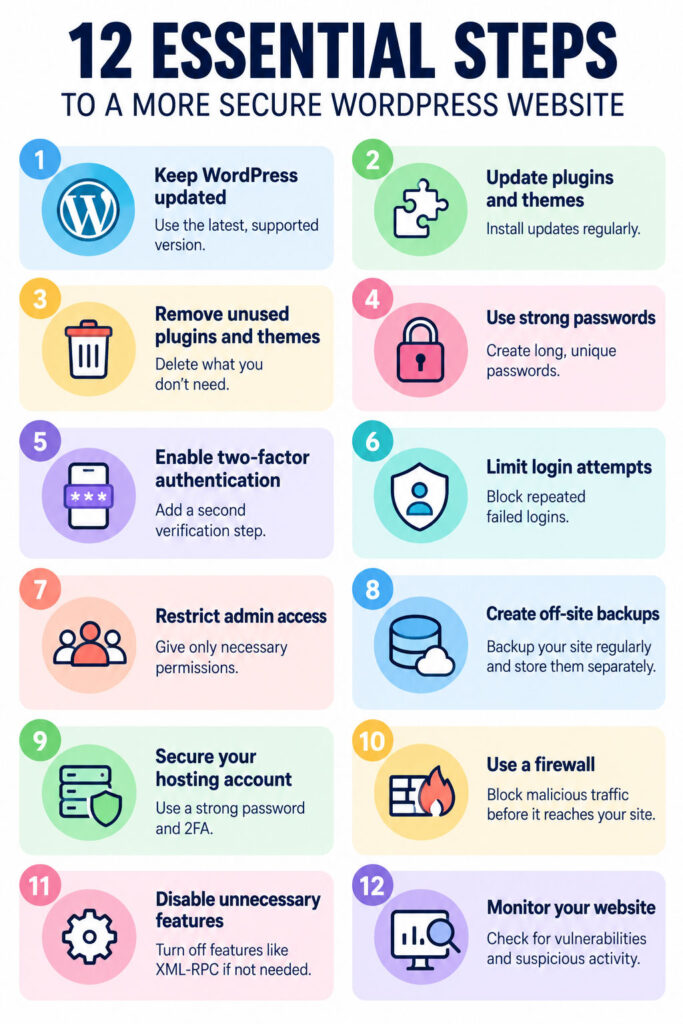
12 things you can do to improve WordPress security
- Keep WordPress, plugins and themes updated. Updates frequently include fixes for known security vulnerabilities, so don’t leave them sitting for months.
- Remove plugins and themes you don’t use. A deactivated plugin can still contain vulnerable code. If you don’t need it, delete it.
- Use strong, unique passwords. Your WordPress Administrator, hosting, SFTP and other important accounts should all have different passwords.
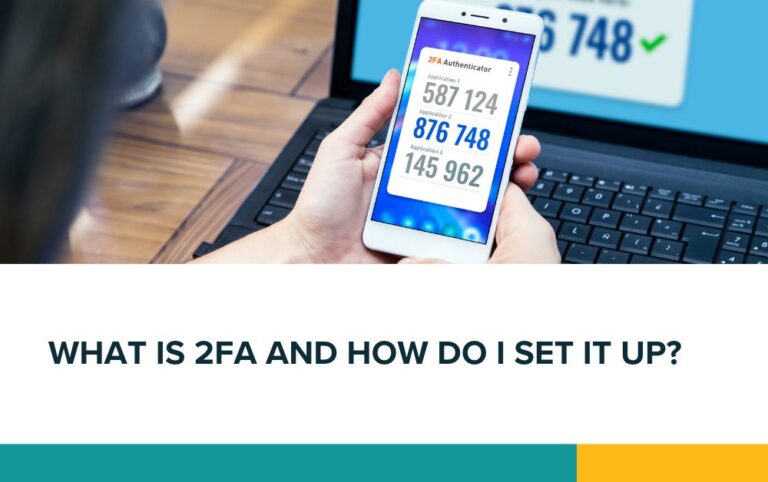
- Use two-factor authentication (2FA). This adds a second verification step when someone logs in, so a stolen password alone isn’t enough.
- Limit failed login attempts. WordPress shouldn’t allow someone to try thousands of username and password combinations without being stopped.
- Limit the number of Administrator accounts. Don’t give everyone Administrator access. Give users only the permissions they actually need.
- Keep backups away from the website. Regular backups are essential, but ideally store them somewhere separate from your hosting account.
- Protect your hosting account. Securing WordPress while leaving your hosting account protected by a weak password doesn’t make much sense. Use a strong password and 2FA where available.
- Use a firewall and security protection. A web application firewall or suitable security service can identify and block malicious requests before they reach vulnerable parts of your website.
- Disable features you don’t need. XML-RPC, for example, isn’t required by every WordPress website. If you don’t use functionality that depends on it, you may be able to turn it off.
- Choose plugins carefully. Don’t install a plugin simply because it does what you need. Check that it is actively maintained and comes from a reputable developer.
- Monitor your website. Vulnerability monitoring, uptime monitoring and security alerts can help you spot problems before they become much bigger ones.
WordPress security checklist
| What it is | How to do it | Why it matters |
|---|---|---|
| Keep WordPress updated | Install WordPress core updates promptly and keep your site on a currently supported version. | Updates can contain fixes for known security vulnerabilities. |
| Keep plugins and themes updated | Regularly check for updates or use carefully managed automatic updates. | Outdated plugins and themes can contain vulnerabilities that attackers actively scan for. |
| Remove unused plugins and themes | Delete software you no longer need rather than simply deactivating it. | Unused code can still become a security risk. |
| Use strong passwords | Generate long, unique passwords and store them in a password manager. | Makes password guessing and credential-based attacks much harder. |
| Use two-factor authentication | Require an authentication app, passkey or another second factor for important accounts where available. | A stolen password on its own is no longer enough to access the account. |
| Limit login attempts | Use a security tool to temporarily block repeated failed login attempts. | Makes automated password guessing much less effective. |
| Restrict Administrator access | Use Editor, Author or other suitable roles when full Administrator access isn’t required. | If an account is compromised, the attacker has fewer permissions. |
| Create off-site backups | Automatically back up the website and database to separate storage. | You still have a clean copy if the website or hosting account is damaged or compromised. |
| Secure your hosting account | Use a unique password and enable 2FA where available. | Hosting access can potentially give someone control over the entire website, not just WordPress. |
| Use firewall protection | Use reputable WordPress, hosting or external firewall protection. | Helps identify and block malicious requests and known attack patterns. |
| Disable unnecessary features | Disable services such as XML-RPC if your website doesn’t need them. | Reduces the number of routes attackers can potentially target. |
| Choose reputable plugins | Check maintenance history, recent updates, developer reputation and compatibility before installing. | Poorly maintained software can introduce unnecessary vulnerabilities. |
| Monitor for problems | Use vulnerability scanning, uptime monitoring and security alerts. | You can respond more quickly when something goes wrong. |
WordPress security myths: things that sound more useful than they are
Plenty of WordPress security advice is online. Some recommendations aren’t necessarily bad, but people often exaggerate their importance.
Myth 1: Changing the WordPress login URL makes your website secure
The standard WordPress login is usually accessible at/wp-login.php and /wp-admin/.
Some plugins change this to something less obvious, such as:
example.co.uk/my-secret-login/
This can reduce the number of automated bots hitting the standard login page. That helps reduce nuisance traffic and failed login attempts.
However, this doesn’t make the login itself any stronger, unfortunately.
If someone discovers the new URL, you’re back where you started. Strong passwords, two-factor authentication, and login protection matter more.
Think of changing the URL as hiding the front door rather than fitting a better lock.
Myth 2: Changing the default admin username will stop hackers
You shouldn’t use an obvious username like admin, especially if you’re setting up a new website.
But changing the username isn’t enough.
WordPress usernames can sometimes be discovered through other parts of a website, and knowing a username shouldn’t be enough to compromise an account anyway.
Your security shouldn’t depend on keeping the username secret.
A unique password and 2FA provide much stronger protection.
Myth 3: Changing the WordPress database prefix makes the website secure
WordPress traditionally uses wp_ as the database table prefix.
You will sometimes see recommendations to change it to something random, such as:
x7F3_
There is nothing particularly wrong with doing this during installation, but it isn’t a substitute for securing the database and website properly.
A properly constructed attack shouldn’t succeed simply because an attacker knows your database table prefix.
Myth 4: Hiding your WordPress version stops attackers
Some security tools remove the WordPress version number from the site’s source code.
Again, there is little harm in doing this, but don’t rely on it.
Attackers don’t need to know your precise WordPress version before trying known vulnerabilities, and there may be other ways to identify information about the software your website uses.
Keeping WordPress updated is far more useful than trying to hide which version you’re running.
Myth 5: Installing a security plugin makes WordPress secure
A security plugin can be extremely useful, but installing one doesn’t magically protect everything.
It can’t compensate for an Administrator using Password123, an abandoned plugin that hasn’t been updated for five years, poor hosting security or backups that don’t work.
Security comes from several layers working together.
Myth 6: SSL means your website is secure
The padlock in the browser is important, but it doesn’t mean a website cannot be hacked.
HTTPS encrypts information travelling between the visitor’s browser and your website.
It doesn’t prevent someone from exploiting a vulnerable WordPress plugin, stealing an Administrator password or accessing your hosting account.
SSL is essential, but it solves a different security problem.
What should you prioritise?
If you’re responsible for a WordPress website, don’t get distracted by clever tricks designed to make WordPress harder to recognise.
Start with the basics.
Keep everything updated. Remove software you don’t need. Protect important accounts with strong passwords and 2FA. Restrict Administrator access. Keep reliable off-site backups. Monitor the website for vulnerabilities and suspicious activity.
Once those protections are in place, changing your login URL or hiding your WordPress version can be an additional precaution if you want it.
Just don’t mistake hiding things for securing them.
A secure WordPress website isn’t one nobody can find the login page for. It’s one where finding the login page doesn’t give an attacker much of an opportunity in the first place.
Can an SSL certificate stop my WordPress website from being hacked?
No. SSL encrypts information travelling between your website and its visitors, which is essential, but it does not protect WordPress from vulnerable plugins, stolen passwords or other security issues.
How often should WordPress plugins be updated?
Check for updates regularly and install security-related updates promptly. If someone manages your website for you, updates should form part of their regular maintenance routine rather than being left until something goes wrong.
Should I delete plugins I am not using?
Yes. If you no longer need a plugin, delete it rather than simply deactivating it. Unused software can still contain vulnerabilities and there is little benefit to keeping it installed.
What happens if a WordPress plugin has a security vulnerability?
The plugin developer will often release an update that fixes the vulnerability. This is one reason keeping plugins updated is so important. If a vulnerable plugin is no longer maintained, it is usually better to replace it.
How do I know if a WordPress plugin is safe?
Look at whether the plugin is actively maintained, when it was last updated, whether it supports your current WordPress version and who develops it. Be cautious with abandoned plugins or software downloaded from unofficial sources.
How many WordPress Administrator accounts should I have?
As few as necessary. Someone who only needs to edit pages or publish blog posts usually does not need Administrator access. Limiting permissions reduces the potential damage if an account is compromised.
Should I use the username "admin" for WordPress?
It is better to choose a less obvious username, but changing the username alone is not a strong security measure. A unique password and two-factor authentication provide much more meaningful protection.
How often should I back up my WordPress website?
That depends on how frequently your website changes. A frequently updated or ecommerce website may need daily or more frequent backups, while a relatively static website may need them less often. The important thing is to have recent, automatic backups that you know can be restored.
Where should WordPress backups be stored?
Ideally, keep at least one backup somewhere separate from the server hosting your website. If the hosting account itself is compromised or fails, you still have access to your backup.
Can my hosting company restore my website if it gets hacked?
Possibly, but you should not rely on that as your only backup strategy. Check what your hosting provider actually backs up, how long backups are retained and whether you can restore them when needed.
How will I know if my WordPress website has been hacked?
Warning signs can include unexpected Administrator accounts, unfamiliar files, website redirects, changed content, security warnings, unusual traffic or your hosting provider contacting you. Some compromises are much less obvious, which is why security and vulnerability monitoring are useful.
What should I do if I think my WordPress website has been hacked?
Do not simply change your WordPress password and assume the problem is solved. The site needs to be checked for malicious files or code, vulnerable software and unauthorised users. Passwords and access credentials may need changing, and in some situations restoring a known clean backup is the safest approach.
Can I make a WordPress website 100% secure?
No website can be guaranteed to be 100% secure. The aim is to reduce the risk considerably, remove obvious opportunities for attackers and make sure you can recover quickly if something does go wrong.