Quick summary
A hacked WordPress website isn’t always obvious. Unexpected redirects, unfamiliar users or content, security warnings, spam emails, suspicious files and unexplained website changes can all be warning signs. If you suspect a hack, investigate the cause, scan the site, secure your accounts, and fix any vulnerabilities rather than simply restoring a backup and hoping for the best.
Sometimes a hacked WordPress website is obvious. Your homepage has changed, visitors are being redirected somewhere they shouldn’t be, or Google displays a security warning.
Other times, the signs are much more subtle.
A hacked website can continue looking completely normal while malicious code runs quietly in the background. You might only discover the problem because your hosting company contacts you, unfamiliar pages start appearing in Google, or something unusual shows up in WordPress.
So, how can you tell whether your WordPress website has been compromised, and what should you do if you suspect it has?
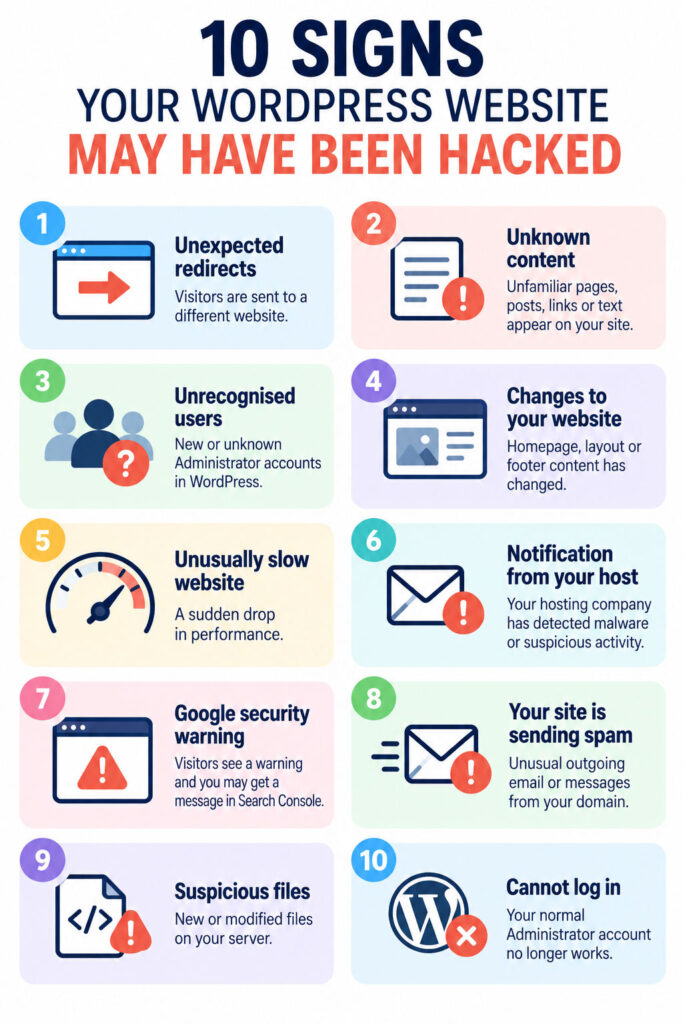
Signs your WordPress website may have been hacked
1. Your website redirects visitors somewhere else
One of the more obvious signs is an unexpected redirect.
You visit a page on your website and suddenly end up on a completely unrelated website. Sometimes these redirects only affect certain visitors or devices, which can make them surprisingly difficult to reproduce.
If your website starts redirecting visitors and you haven’t intentionally set up those redirects, investigate it immediately.
2. Your website suddenly contains content you didn’t create
You might notice unfamiliar pages, blog posts, links or text.
Hackers sometimes add spam pages promoting products or services. In other cases, they hide links within existing pages rather than creating anything obviously visible.
Search Google for:
site:yourwebsite.co.uk
This can help you see which pages Google currently knows about. If you find pages you don’t recognise, something may be wrong.
Bear in mind that unfamiliar results aren’t automatically evidence of a hack. Old pages, staging content and legitimate URLs can also appear in Google’s index.
3. There are WordPress users you don’t recognise
Check the Users section of WordPress.
Pay particular attention to Administrator accounts.
If you find an Administrator you didn’t create and nobody else responsible for the website recognises them, treat it seriously.
An Administrator can install plugins, change website settings, create other users and make substantial changes to your website.
4. Your website has changed unexpectedly
Your homepage may look different. A button has appeared that nobody added. Your header has changed. Unfamiliar text appears in the footer.
Don’t immediately assume every unexpected change is malicious. Plugin updates, caching problems and accidental edits can also change how a website looks.
But unexplained changes are worth investigating.
5. Your website becomes unusually slow
A sudden drop in performance can sometimes indicate malicious activity.
Malware may consume server resources, generate large numbers of requests or perform processes in the background.
However, a slow WordPress website doesn’t automatically mean it has been hacked. Poor hosting, large images, plugin conflicts and traffic spikes can cause similar symptoms.
Think of unusual slowness as a reason to investigate rather than proof of a security breach.
6. Your hosting company contacts you
Don’t ignore security notifications from your hosting provider.
They may have detected malware, suspicious files, unusual server activity or large volumes of outgoing email.
In some cases, your web hosting company may suspend your website after it has been hacked to prevent it from affecting other websites or sending malicious traffic.
7. Google displays a security warning
Google may identify a website as potentially harmful if it detects malware or deceptive content.
Visitors might see a warning before they can access your website, and Google Search Console may contain a security notification.
Investigate this quickly, but don’t just remove whatever triggered the warning and consider the job finished. You also need to establish how the malicious content got there.
8. Your website starts sending spam
A compromised website can sometimes be used to send unwanted or malicious email.
You may notice a sudden increase in outgoing email, receive warnings from your hosting provider or discover that legitimate website emails are being rejected.
Again, other factors can cause email problems, but unexpected sending activity deserves investigation.
9. Files have appeared or changed unexpectedly
This one is harder for the average website owner to spot.
A security scan or your hosting provider may identify unfamiliar PHP files, modified WordPress files or malicious code inserted into legitimate files.
Not every unfamiliar file is malware, so don’t start deleting files unless you know what they are.
10. You can no longer log into WordPress
If your normal Administrator account suddenly stops working, check why.
Someone who gains access to WordPress could change passwords, email addresses or user permissions to prevent legitimate Administrators from getting back in.
Of course, forgetting your password isn’t evidence that you’ve been hacked. An unexplained change to an account is different.
What should I do if I think my WordPress website has been hacked?
First, don’t panic or start randomly deleting things.
A compromised website needs to be dealt with methodically.
1. Take the website seriously, even if it still looks normal
Don’t assume everything is fine simply because the homepage still works.
Malware can hide from normal visitors, and attackers may deliberately avoid obvious changes that would alert the website owner.
If you have a genuine reason to suspect a compromise, investigate it.
2. Contact whoever manages your website or hosting
If somebody manages your WordPress website, contact them before making major changes yourself.
Tell them exactly what you’ve noticed, when you first noticed it and whether you’ve received any warnings from Google, your hosting company or a security service.
That information can help narrow down what happened.
3. Check your WordPress users
Look for accounts you don’t recognise, particularly Administrators.
Don’t assume that deleting an unknown account fixes the problem. If an attacker could create an Administrator account, you still need to find out how they gained access.
4. Scan the website for malware and vulnerabilities
Check the website for malicious or modified files and known vulnerabilities.
You should also check WordPress itself, installed plugins and themes.
Finding malware is only part of the job. You need to identify the likely entry point so the website isn’t immediately compromised again after cleaning.
5. Change important passwords
If a compromise is confirmed or strongly suspected, you may need to change passwords associated with the website.
That can include:
- WordPress Administrator accounts
- Hosting control panel
- SFTP or FTP
- Database credentials where appropriate
- Other accounts connected with the website
Use new, unique passwords rather than variations of the old ones.
Enable two-factor authentication wherever possible.
6. Update WordPress, plugins and themes
Check whether WordPress or any installed software is out of date.
Automated bots routinely scan for known vulnerabilities in old plugins and themes.
If a vulnerable plugin is no longer maintained, updating isn’t enough. Replace it with a maintained alternative or remove it if you don’t need it.
7. Remove software you don’t need
Delete abandoned plugins, unused themes and anything else that shouldn’t be there.
A plugin doesn’t have to be active to be worth removing.
The less unnecessary software you install, the fewer things you have to maintain and monitor.
8. Restore a clean backup if necessary
Sometimes restoring a known clean backup is the most sensible way to recover a website.
But there is an important question:
When was the website compromised?
If the malware has been present for three months and you restore a backup from last week, you may restore the malware too.
A backup is only useful for this purpose if you have reasonable confidence that it predates the compromise.
9. Find out how the website was compromised
This is one of the most important steps.
Cleaning the website without addressing the original vulnerability can leave you in the same position a few hours or days later.
The cause might have been a vulnerable plugin, compromised Administrator account, stolen hosting credentials or another security weakness.
You may not always be able to determine the exact route with certainty, but you should address known vulnerabilities and compromised access before considering the incident resolved.
10. Check the website again after cleaning it
Once you’ve removed malicious content, scan the website again.
Check the users, plugins, themes and important website files. Make sure everything works correctly and continue monitoring the website afterwards.
If Google or your hosting company flagged the website, you may also need to request a review once you are confident the problem has been resolved.
Should I restore my WordPress website from a backup?
Not automatically.
A backup is extremely valuable after a hack, but restoring one shouldn’t be your only response.
If you don’t know how the attacker got in, the same vulnerability could still exist after the restore.
And if you don’t know when the compromise happened, your backup could already contain the malicious code.
The better approach is to combine a clean backup with an investigation into the likely cause.
Does a hacked WordPress website need to be rebuilt?
Not necessarily.
Many compromised WordPress websites can be cleaned, secured and returned to normal without rebuilding them from scratch.
However, the right approach depends on the extent of the compromise, the website’s condition, the backups available, and how confident you can be that malicious files have been removed.
For a badly compromised, very old website with numerous abandoned plugins and no trustworthy backup, rebuilding may be the more sensible option.
Why was my website hacked?
It is easy to take a website hack personally, particularly when you run a small business.
But in many cases, nobody has specifically chosen your business as a target.
Automated systems constantly scan websites looking for known vulnerabilities, weak passwords and outdated software. When they find an opportunity, they can exploit it automatically.
That is why even a small website with relatively little traffic needs proper security.
Prevention is much easier than cleaning up afterwards.
No one can guarantee a website will never be compromised.
You can, however, make it considerably harder.
Always keep your WordPress installation, any plugins and themes updated. Remove plugins and themes you no longer use. Use strong, unique passwords and two-factor authentication. Limit Administrator access. Keep reliable off-site backups and monitor the website for vulnerabilities.
Most importantly, don’t wait until something goes wrong before thinking about WordPress security.
Regular maintenance is much easier than figuring out what happened after your website has been compromised.
How we protect WordPress websites at BISL
At Business Image Services, we don’t rely on a single plugin or security trick to protect the WordPress websites we host. We use several layers of security, maintenance, monitoring and backups to reduce the risk of a website being compromised.
We monitor for known vulnerabilities. We check all websites we manage daily to identify vulnerable WordPress software and take action immediately.
We limit repeated login attempts. Our websites use login protection to block repeated failed login attempts, making automated password attacks considerably harder.
We disable XML-RPC where it isn’t needed. XML-RPC can provide another route for automated attacks against WordPress. We disable it on websites that don’t require the functionality.
We remove unnecessary software. Old, abandoned or unused plugins and themes create unnecessary risk, so we aim to keep each WordPress installation as lean as possible.
We use secure hosting. We host and manage client websites through 20i rather than spreading them across numerous hosting companies we don’t control. This also lets us manage the hosting environment alongside WordPress itself.
We keep independent off-site backups. We create website backups and store copies separately. This matters because a backup stored alongside the website could be affected by the same hosting problem or security incident.
We also have hosting-level backups where available. These provide another recovery option alongside our independent WordPress backups.
We monitor the websites we manage. We spot problems, available updates, and other issues early, without waiting for a client to discover something has gone wrong.
Most importantly, we don’t consider any single measure enough on its own. WordPress security works best in layers: secure hosting, maintained software, protected logins, vulnerability monitoring and reliable backups all work together.
No website can be guaranteed never to be hacked, but good ongoing maintenance makes a successful attack far less likely and, just as importantly, gives us options to recover a website if something does go wrong.