Quick summary
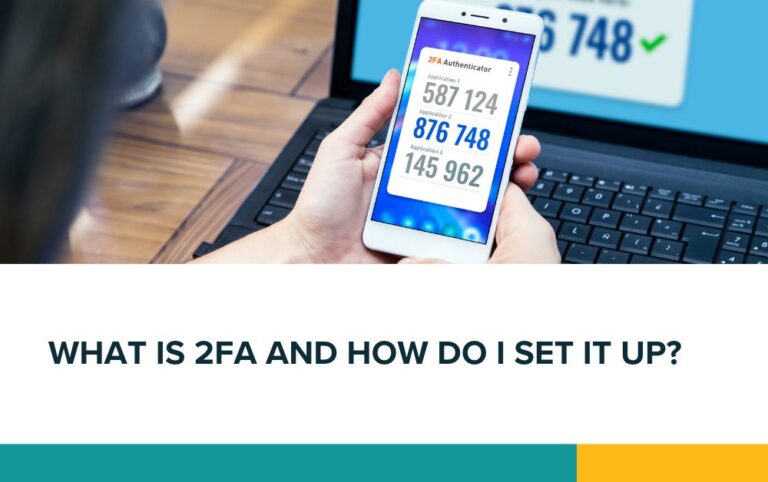
Two-factor authentication (2FA) adds an extra check when you log in, helping protect your accounts if your password is stolen. Start with your email, banking and website accounts. Install Google Authenticator on your phone, connect each account separately and save your backup codes somewhere safe.
A password alone is not always enough to protect your accounts. If someone steals it, they could access your emails, website or business information.
Two-factor authentication (2FA) adds another check when you log in. You enter your password, then confirm your identity using something else, such as a temporary code generated by an app on your phone. A stolen password becomes much less useful without that second step.
When was 2FA introduced?
There was no single launch date for 2FA across all services. Google introduced two-step verification for all Google Accounts in 2011, so it has been available for well over a decade.
What should you use 2FA for?
Use it wherever it is available, starting with accounts that control your money, customer information or access to other services. Protect your email first: someone with access to your inbox could use password reset emails to get into other accounts.
For a small business, we suggest this order:
| App or account | Examples | Priority |
|---|---|---|
| Business and personal email | Gmail, Outlook, Microsoft 365 | Critical: set up first |
| Password manager | The app storing your login details | Critical |
| Banking and payment accounts | Online banking, PayPal, Stripe | Critical |
| Website, hosting and domain accounts | WordPress admin, hosting control panel, domain registrar, Cloudflare | Critical |
| Cloud storage and business documents | Google Drive, OneDrive, Dropbox | High |
| Social media and advertising | Facebook, Instagram, LinkedIn, Google Ads | High |
| Accounting and customer systems | Xero, QuickBooks, CRM software | High |
| Shopping and other accounts with saved payment details | Amazon and other online shops | Recommended |
Some services already require an extra security check. Methods vary, so follow each provider’s instructions.
How to set up 2FA with Google Authenticator
Install Google Authenticator on your phone from the Apple App Store or Google Play Store. Check that the developer is Google.
The app generates temporary security codes. You can use it for multiple accounts that support authenticator apps, including services outside Google. It can generate codes without an internet connection or mobile signal.
To connect an account:
-
Log into the account you want to protect, preferably on your computer.
-
Open its security settings. Look for “two-factor authentication”, “two-step verification” or “MFA”.
-
Choose the authenticator app option. The service will usually display a QR code.
-
Open Google Authenticator on your phone. Tap the option to add an account, then scan the QR code.
-
Enter the code shown in the app into the account’s setup screen and complete the activation.
Installing the app alone does not switch on 2FA. You need to connect and activate it separately for each account.
Keep your backup codes safe
If the service provides backup codes, save them somewhere secure that you can access if your phone is lost or broken. Each code can normally be used only once.
Before replacing your phone, check that your authenticator accounts have transferred and work on the new device. Never share login codes or approve a sign-in request you did not initiate.