Updated January 2026
Quick summary
A “button page” is a simple landing page made of clickable links/buttons that replace a Linktree-style page, but instead of using a third-party tool you build it on your own website so you control the design, branding, and analytics; this keeps traffic on your site, boosts your SEO, and lets you customise how visitors navigate to your key content or social links.
What is a LinkTree page?
A Linktree page is a webpage with clickable links/buttons. LinkTree allows you to create a small page that only consists of buttons. These buttons link to different pages, such as your website, blog, social media profiles, online store, or other relevant content. A Linktree page is simple, with all the essential links you quickly want to share with social media followers.
When someone opens your LinkTree page, all they see is your name or business name, followed by a stack of buttons. If you mention your blog in your social media posts, you can easily say, “click on the link in my bio to see my blog”, or “click on the link in my bio to download the freebie”.
LinkTree provides the “storage space” for this small “Click Hub”. They offer a free and paid version. If you want to use more design features, you must pay for the tool.
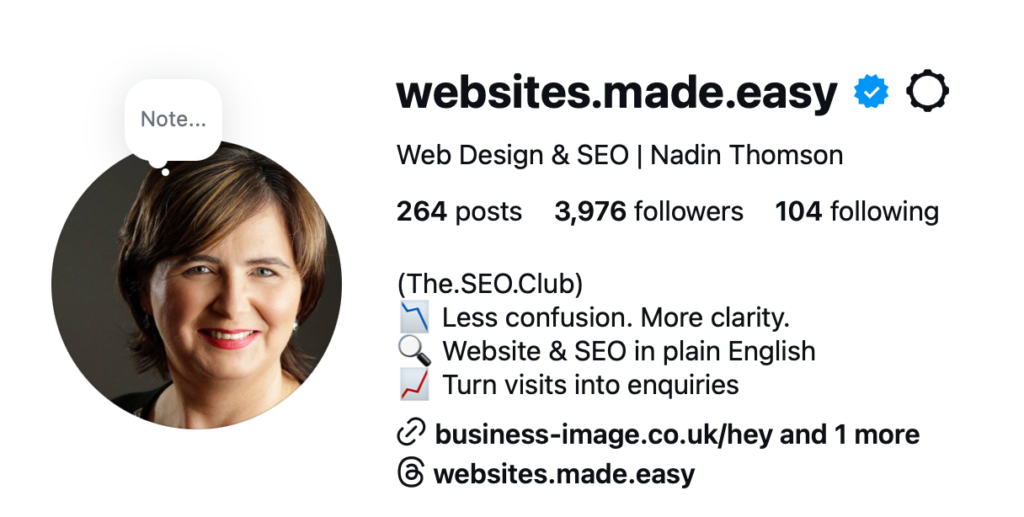
Below you see a screenshot of my Instagram Profile – the link that’s displayed in the profile is where you’d put the “button page” URL.
Who should use LinkTree?
If you run an online business but you don’t have a website. For example – you’re selling through a third-party website such as Etsy, or an art dealer. You may want to create links that allow your social media followers to open your gallery page / Etsy page directly from your social media profile.
Who shouldn’t use LinkTree?
Anyone who has their own website.
Five reasons not to use LinkTree:
- Limited design: You can only customise your LinkTree page to a limited extent. You may not be able to fully showcase your brand and personalise the page to match your style.
- Limited branding options: The branding is generic. Making it look like it’s part of your website may be difficult.
- No analytics in the free version: You cannot find out which buttons have been clicked most or if one of your online campaigns resulted in more clicks than another.
- It’s an extra step for visitors: When you use LinkTree, you add an extra step between your visitors and your content.
- An extra platform to maintain: You need to log in to LinkTree to amend things.
Five benefits of creating a page similar to LinkTree on your website:
- The Design options are limitless: If you have your own “button page” on your website, you control its design and layout. You can create a page that matches your brand and provides a great user experience.
- Branding: By creating a button page on your website, you can reinforce your brand and establish a stronger online presence. It can help your visitors recognise and remember your brand more easily.
- Improved user experience: You can ensure that the page integrates seamlessly with the rest of your site, resulting in a more seamless and professional user experience.
- Increased traffic: Promoting your own button page on your social media channels can drive more traffic to your site and increase engagement with your content.
- Better analytics: You can use website analytics tools (such as Google Analytics) to track user behaviour and link performance. This information can help you optimise your button page.
Step-by-step guide on creating a button page on your website
LinkTree is one of many ways to create a page that consists of nothing but buttons. If you already have a website, you can create a page with buttons that link to different pages on your website or external links.
Below, I have provided a step-by-step guide on creating a button page on your website, but generally, follow these steps.
- Log in to your website builder.
- Create a new page you want to use for your buttons.
- Give it a short URL, such as “hello” or “hi”. business-image.co.uk/hey
- Add a section or element to the page that will hold the buttons, such as a row or a column.
- Add a button element to the section or column you just created.
- Repeat the previous step for each button you want to add.
- Customise the page and the buttons, such as changing the button colours or font size.
- You can also add images to the background or add a background colour behind the buttons.
- You can use different coloured buttons to draw the visitor’s attention to a specific button.
A button page on your website is an excellent alternative to using LinkTree. You have complete control over the design and content of the page, and visitors won’t need to leave your website to access the links.
How to create a LinkTree page on Wix?
- First, sign in to your Wix account and navigate to the “Page Manager” section.
- Click the “Create New Page” button and select “Blank Page.”
- Next, use Wix’s drag-and-drop editor to create your LinkTree page. You can add text, images, and links to your page, just like you would with any other Wix page.
- When you’re happy with your LinkTree page, click the “Publish” button in the top right corner of the editor to make it live.
- Once your LinkTree page is live, copy the URL of the page.
- Add the URL to your Social Media profiles and replace the LinkTree page.
How to create a LinkTree page on Squarespace?
- Log in to your Squarespace account and navigate to the “Pages” section.
- Click on the “+” icon to create a new page, and select “Blank Page.”
- Next, use Squarespace’s drag-and-drop editor to create your “button” page. You can add text, images, and links to your page, similar to any other Squarespace page.
- When you’re happy with your page, click the “Save & Publish” button in the top right corner of the editor to make it live.
- Once your page is live, copy the URL of the page.
- Add the URL to your Social Media profiles and replace the LinkTree page.
How to create a LinkTree page on WordPress?
- Log in to your WordPress account and navigate to the “Pages” section.
- Click on the “Add New” button to create a new page.
- Give your page a name (e.g., “Hello”), and use the editor to create your button page. You can add text, images, and links to your page, just like you would with any other WordPress page.
- When you’re happy with your page, click the “Publish” button in the top right corner of the editor to make it live.
- Once your page is live, copy the URL of the page.
- Add the URL to your Social Media profiles and replace the LinkTree page.
How to track visitors and check the button performance
- Make sure you have Google Analytics 4 set up on your website.
- Watch the video below to see how many people looked at the Buttons page and which links they clicked.
More options beyond Linktree in 2026
In 2026, there are many Linktree alternatives and link-in-bio tools that can provide more features, customisation, and analytics than Linktree’s basic offering.
Some of these tools specialise in mobile-friendly bio pages, custom domains, analytics and even AI-assisted designs. Popular alternatives include Taplink, Beacons, Shorby, Carrd, and Bio.fm, each with different strengths depending on your goals.
Why building your own link page can be better
Creating your own custom button page on your website has advantages over third-party tools. It keeps visitors on your own domain, helping with SEO and analytics tracking, you can use Google Analytics to see exactly how people interact with each button and where they go next. This gives you more data and control than relying on an external service.
Button design best practices for higher engagement
When you build your own button page, pay attention to good button design and placement so people actually click. Modern best practices suggest using clearly labelled buttons, enough spacing, visual cues for primary actions, and mobile-friendly sizing — all of which help engagement and conversions.
SEO value and control
Using your own website means you aren’t dependent on a third-party platform’s domain, layout, or uptime. You can fully customise metadata, accessibility, branding, and performance — and keep the SEO benefit entirely on your own site. Tools like WordPress, Squarespace, Wix, or Carrd make it easy to create a dedicated bio link page without extra subscriptions.