Updated January 2026
Quick summary
Optimising images helps your site load faster and rank better in Google. Use descriptive filenames and alt text that matches what people search for, compress images to reduce file size, use the right file formats (like WebP or JPEG), and add structured image captions where it helps. Good image optimisation improves user experience, accessibility, and SEO.
If you’re working in a very visual industry, such as wedding photography, or you’re a florist or an artist, you can attract A LOT of people to your website and your business by optimising the photos on your website.
In this blog article, I will explain exactly how to do it so that your images start appearing on the Google image search.
“Is it worth it?” you might say.
Around 1 billion people use Google Images daily. Over 10% of Google traffic goes to images.google.com. Images are clicked about 1 billion times daily. Google has indexed roughly 10 billion images.
Why is image SEO important for your business?
Let’s say you’re a wedding photographer and work mostly in Edinburgh. When a couple gets engaged, they quickly start looking for wedding venues. The order of “booking” often goes like this:
- Set a date
- Find a venue
- Book big-ticket services (band, photographer, florist)
- Everything else (dress, suit, rings, details)
Most photographers optimise their website to be found when the couple is ready to look for a wedding photographer. They might target keywords like this: “Wedding photographer Edinburgh”, “Reportage photographer Edinburgh” and so on.
By optimising your images on your website, you can get noticed by potential couples months before they are ready to book a photographer.
The aim is to appear in the Google search results when the couple searches for venues.
How do you do this? Simple! Write a really detailed blog post about the venues you photographed.
The importance here is NOT to combine all the different venues into one blog post but to write one really detailed blog post about one venue at a time. Include lots of venue images, too and sample wedding photographs taken in this venue.
Let me explain why…
The Power of Google Image Search
When a couple starts looking for a wedding venue, they might have a vague idea of what they’re after. For example, a castle venue or a city centre venue.
As venue search will be completely alien to the couple, they will likely look at images first to get a first impression.
Wedding venues often have websites with amazing staged photographs, and some show real wedding photos. For venues, it’s not easy to show photos of weddings as they need permission from the photographer and the couple.
Here’s where your advantage lies: You’re the photographer, and you can write a detailed post about a recent wedding – including sample photos about a certain venue.
When the newly-engaged couple heads over to Google and starts searching for wedding venues in your area, guess whose images appear on the Google images page: Yours.
What does Google say about optimising your photos on your website?
Google provides very clear guidelines on how to optimise images. I will explain what Google expects to see and what it means for your website.
Google: Provide good context: Make sure that your visual content is relevant to the topic of the page. We suggest that you display images only where they add original value to the page. We particularly discourage pages where neither the images or the text are original content.
This means: Avoid using images that have nothing to do with the page topic.
Google: Optimize placement: Whenever possible, place images near relevant text. When it makes sense, consider placing the most important image near the top of the page.
This means: When someone looks at one of your webpages or a blog post, ensure the photos or graphics you show are connected to the content above and/or below the photo. When you’re talking about a wedding venue, show photos of the building, for example. Avoid using detail photos of an apple that’s growing on the venue’s apple tree.
Google: Don’t embed important text inside images: Avoid embedding text in images, especially important text elements like page headings and menu items, because not all users can access them (and page translation tools won’t work on images). To ensure maximum accessibility of your content, keep text in HTML, provide alt text for images.
This means: No doubt you know and use Canva and it’s super easy to put lovely messaging into an image. Google advises against this though for the reasons mentioned above. This text cannot be translated (as it’s part of the image) and screenreaders cannot read it either (bad for usability). You can find more about this in my Ultimate Guide for website images.
Google: Create informative and high quality sites: Good content on your web page is just as important as visual content for Google Images – it provides context and makes the result more actionable. Page content may be used to generate a text snippet for the image, and Google considers the page content quality when ranking images.
This means: When you use an image to explain certain aspects in more detail, Google might just use the image and the text you provided to show your information in the search results.
Google: Create device-friendly sites: Users search on Google Images more from mobile than on desktop. For this reason, it is important that you design your site for all device types and sizes. Use the Mobile-Friendly Test to test how well your pages work on mobile devices, and get feedback on what needs to be fixed.
This means: Make sure images are small enough to load quickly on mobile phones. Avoid using slideshows and other moving images not displayed properly on mobile phones (here’s an article about why you should avoid using slideshows altogether).
Google: Create a good URL structure for your images: Google uses the URL path as well as the filename to understand your images. Consider organizing your image content so that URLs are constructed logically.
This means: When you use an image to explain certain aspects in more detail, Google might just use the image file name and the text you provided to show your information in the search results.
Understanding the Basics of Image SEO
What is SEO and How Does it Work?
You’ll undoubtedly know that SEO is a huge subject, and image SEO is only a small part.
Here’s what SEO is in a nutshell:
SEO is optimising your website to make it more visible in search results.
And here’s why you need to do SEO:
Providing relevant content (including images) that your potential customers actually search for in Google.
Get started with image SEO
Image selection: The first step to great image SEO
Put yourself into the shoes of a newly engaged couple. They’re tossing around ideas about where to get married, weighing up options, budgets, venue styles and so on.
Let’s say they are indecisive about the type of venue, and they go to Google and enter “castle wedding venues near Edinburgh”. They are not ready to speak to a venue yet, they just want to see what’s available. So they head over to the image search and start looking at Google images.
Each image shows who posted the image, and if a photograph grabs their attention, they will click on it – i.e. visit your website!
The deeper they look into choosing a venue, the more specific their search will be, for example: “Dundas castle sample wedding photographs”.
If an image grabs their attention, they will click on it and voila – you’re now on their radar for a potential photographer!
And they didn’t even look for a wedding photographer at this stage!!
Let’s dive deeper into image SEO.
The same applies when someone is looking to buy something. Regardless of what they are after, great images will make all the difference and it’s what makes people click on your website – from the Google Image Search.
What are the key elements of image SEO?
There are a few elements to image SEO you need to know about:
- Image quality
- Image file size
- Image dimension
- Image file name
- Image type
- Image ALT text
What does “image quality” mean?
When you browse the internet, you will see lots of unique images every day. Some images really stand out and look like they were taken professionally, while others might look like they were taken with a mobile phone or they might just be a stock photo and not much thought has gone into taking the photograph.
Good image quality means the photograph is sharp, has a clear reason to be on your website and a lot of thought has gone into creating the image in the first place.
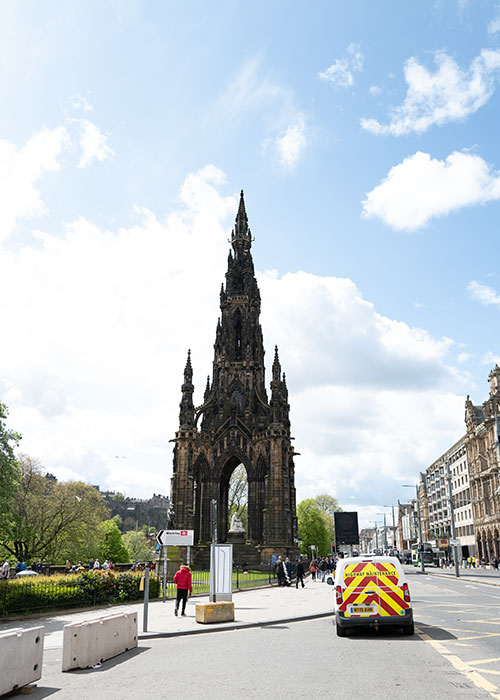
Sample image with bad image quality – which is important for user experience and SEO.
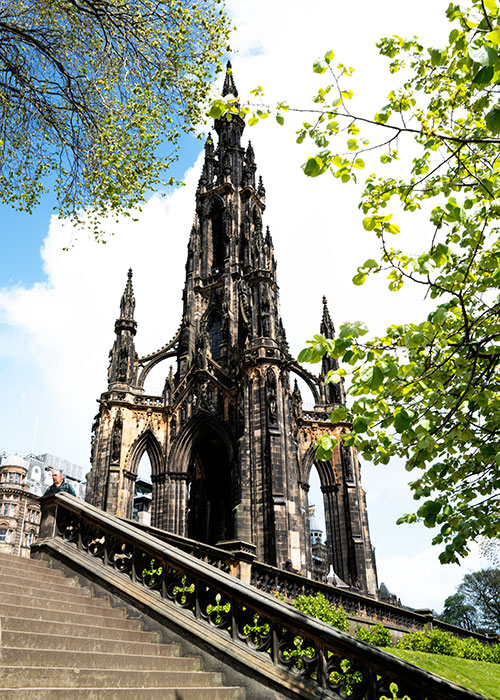
Sample image with good image quality – which is important for user experience and SEO.
Why are high-quality images important?
Think about your newly engaged couple; what photos do they want to see?
While you might ADORE images of the details, they need to fall in love with the venue first. So images that really showcase the building, the grandness of the ceremony room, for example, the gardens, even an aerial photograph, if legally permitted.
By taking photos of the venue, you can also help the venue with their marketing, and they may ask to use your images on their website and socials too.
Ensure your images are well-lit, of amazing quality and don’t look blurry. It’s not about being “arty” at this stage; it’s about being “documentary”.
Which image type is best for my website? PNG vs. JPG vs GIF or something else?
Rule of thumb: Only use JPG files on your website.
- You can compress JPG files without people noticing the file size decrease.
- PNG files are too big (they should only be used if you need to use images with a transparent background).
- GIF files are meant for (animated) graphics only that only contain a small number of colours.
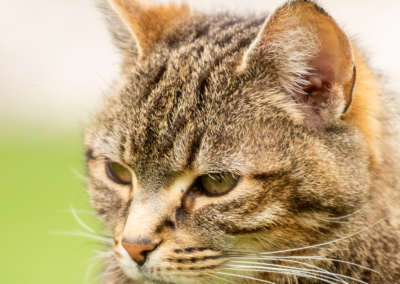
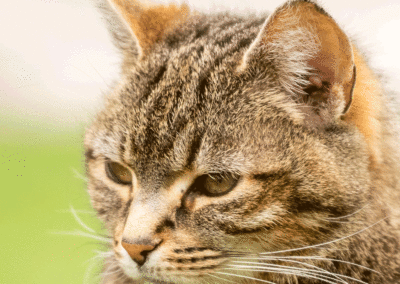
Let’s look at the differences. Here’s a photo of my cat I took with my Nikon DSLR. The RAW file size is 44.4 MB.
- The PNG file is 1.698 MB
- The JPG file is 249 KB
- GIF 528 KB
You can click on each photo to see an enlarged version. I resized the image to be 1000×1000 px.
Which image type is best for my website? PNG vs JPG vs GIF or something else?
There is no longer a one-size-fits-all image format for websites. The best choice depends on what the image is used for and how it needs to display.
As a general rule, photographic images should not be uploaded in their original format. They should be optimised and saved in a web-friendly format before being added to your site.
Here’s how the main image formats compare.
JPG (or JPEG)
JPG files are ideal for photographs. They compress very well, which means you can significantly reduce file size without a noticeable drop in quality. This makes them suitable for most photos used on websites.
PNG
PNG files are much larger than JPGs and should only be used when you need transparency or very sharp edges, such as logos, icons, or graphics with text. They are not suitable for large photographic images.
GIF
GIF files are designed for simple animations with a limited number of colours. They are not suitable for photographs and should only be used for small animated graphics.
Modern image formats: WebP and AVIF
WebP and AVIF are newer image formats designed specifically for the web. They offer much smaller file sizes than JPG and PNG while maintaining high image quality. Where supported by your website platform, these formats are now the best option for performance and SEO.
Most modern websites automatically serve WebP or AVIF images behind the scenes, even if you upload a JPG.
Why file size matters
To illustrate the difference, the same photo resized to 1000 × 1000 pixels can vary dramatically in file size depending on the format.
- The PNG file is 1.698 MB, very large file size
- The JPG file is 249 KB, much smaller with minimal quality loss
- GIF 528 KB, larger than JPG and unsuitable for photos
The takeaway
- Use JPG for photographs
- Use PNG only when transparency is required
- Avoid GIF for photos
- Use WebP or AVIF where available
Optimising images before uploading them is one of the easiest ways to improve website performance.

Why you need to watch the image file size when you upload a photo to your website
The next component of image SEO is the file size.
If you’ve ever run a page speed test using Google’s pagespeed insights and your website speed is very low, image files that are too large can be the culprit. There are different options to improve the image load speed, such as lazy loading, but it’s best to start with optimised images rather than trying to fix issues. Native lazy loading (loading=”lazy”) is now widely supported and will help initial page speed, which boosts SEO.
As a photographer, you’re probably used to downloading raw photos from your camera that are 40, 50 or 60 MB. You then edit these images and make them available to your couple as high-resolution JPG files. These files can still be 5-20 MB which is way too much for your website.
You need to downsize the images in image dimension and file size, but they must still look sharp.
The rule of thumb for uploading images to your website is this: Never upload an image bigger than 250 KB!
That might sound tiny in comparison to what you start out with, but it’s crucial for SEO. When you upload large files to your website, they will take ages to display on your customer’s mobile phone (it also eats up their mobile data); they will slow down your website and, therefore, won’t contribute to a great (fast) user experience.
You can use a screen ruler when you work on your website to measure the maximum width a photo should be before you upload it.
Rule of thumb: Don’t exceed 250 KB per photo – regardless of how big the photo is on your website!
Indexing and image sitemaps
Google can only show images in search results if it can find and understand them. Making sure images are properly indexed helps search engines discover them, especially if they are loaded dynamically or sit deep within your site. Adding important images to your XML sitemap improves discoverability and gives Google clearer signals about which images matter.
Performance tools for image optimisation
Performance tools help you spot image issues that slow your website down. Tools like PageSpeed Insights and Search Console highlight oversized images, poor compression, and loading problems. Regularly checking these tools helps keep your images fast, improves Core Web Vitals, and supports better SEO and user experience.
AI and visual search signals
Search engines and AI tools increasingly use images to understand context, relevance, and quality.
Features like Google Lens and AI-powered search results rely on well-optimised images to identify what an image shows and how it relates to a page.
Clear filenames, accurate alt text, surrounding content, and high-quality visuals help your images appear in visual search results and improve how AI systems interpret your website as a trustworthy source.
How to downsize an image without losing quality?
There are many different ways to downsize an image. I am explaining 3 options here:
- Adobe Photoshop
- Adobe Lightroom
- Canva
How to downsize an image for web in Adobe Photoshop
- Open the image, edit if necessary
Using the Crop Tool:
- Select WxHxResolution and enter the dimensions (incl. px) into the field, for example 500 px, 500 px, 72 (the resolution must only include a number)
- Crop your image
Using the menu:
- Menu > Image > Image Size
- Enter your values in the field (make sure Pixels is selected for each field)
Saving the image:
- Menu > File > Export > Save for Web
- Make sure you see “4 up”
- Select JPEG High (60%)
- Check image size in the top right image
- If above 250 KB, move the slider slightly below 60% (or click into the field and use your keyboard arrow keys) until the file size is smaller than 250 KB
- Then save.
How to downsize an image for web in Adobe Lightroom
- Import the image, edit if necessary
- Select the one (or several images) in the bar at the bottom
- Right-mouse click and select Export…
- Enter your settings
- Where do you want to save it
- If you want to rename it
- File Settings: JPEG, Quality: 60
- You can even set the “Limit to file size to: 250K”
- Image Sizing: Click “resize to fit”, select “Longe Edge”, tick “Don’t enlage” and enter the max. width/height in the field, e.g. 500px.
- Resolution: 72 pixels per inch
- Enter your values in the field (makePre sure Pixels is selected for each field)
- Click Export.
How to downsize an image for web in Canva
- Create a new file with the correct dimensions for your website, e.g. 1000 x 1000 px
- Upload the image
- Drag the image into the picture
- Right-mouse click on the image and select “Set as background image”
- Top left menu: File > Download
- Select JPG
- Change Quality to 60
- Press Download.
What’s the best file name for SEO?
When you download photos from your phone or your camera, the file names will look like this:
- IMG_4205.JPG
- DSC04957.JPG
- DSC04357.RAW
- DSC04957.NEF
ALWAYS rename any photo you upload to your website.
The image file name should be short, but you can include SEO keywords in the file name!
Only use dashes between the words. For example:
- wedding-photos-at-Mansfield-Traquair-Edinburgh.jpg
- luxury-wedding-cake-by-Sussex-cake-designer.jpg
Never use underscores and do not stick the words together, i.e. avoid file names that look like this:
- wedding_photos_at_Mansfield_Traquair_Edinburgh.jpg
- weddingphotosatMansfieldTraquairEdinburgh.jpg
What is Image Alt Text, and how to use it for Image SEO?
ALT is short for “alternative text” (or alternative attribute). The Image ALT text is meant to describe what is in the image. It’s not displayed but only appears in the website code. Search Engines use the ALT text (and the file name) to decide whether an image is relevant when someone enters a search query.
If the ALT text is not shown, why do I need it?
Initially, ALT text was mainly used for visually-impaired people. They use a device that reads website text to them. When they come across an image, the ALT text would tell them that a) there’s an image and b) what’s in the image. That’s why the ALT text should be written in a readable manner (using proper spelling & grammar).
Search Engines will read the code on your website to find out what’s in the image and if it’s relevant to the text above and below your photo. A search engine also perceives your website as “better optimised” which should help with your overall rankings.
How to write ALT text for image SEO?
Here are a few main considerations:
- Keep it short.
- Describe what’s in the image.
- Add keywords without being spammy.
- Make sure it’s readable and uses correct grammar.
When crafting your ALT tags, think about what your target customer is looking for. Here are 3 scenarios describing what’s in the image, but also using keywords.
- You are: Tourist Guide
- ALT Tag: Scott’s Monument in Edinburgh – one of the must see locations
- File Name: Scotts-Monument-must-see-Edinburgh.jpg
- You are: Wedding photographer
- ALT Tag: Scott’s Monument Wedding Photo Location in Edinburgh
- File Name: Scotts-Monument-wedding-photo-location-Edinburgh.jpg
- You are: Photography Coach
- ALT Tag: How to use leading lines to improve Photo composition with the Edinburgh Scott’s Monument as an example
- File Name: Photography-composition-leading-lines-Scotts-Monument-Edinburgh.jpg
I’ve used the same image 3 times, and every single time we’re thinking about our target customer rather than just saying what’s in the image.
- A tourist guide might have a blog post on their website describing the top 10 things to see in Edinburgh’s City Centre.
- The wedding photographer might have a guide on their website explaining that it’s not possible to be photographed at that location due to public park permissions.
- The photography coach might use the same photograph to explain how to change perspective and using leading lines to create a better image.