Updated January 2026
Quick summary
Changing your domain name can hurt your SEO if it’s not done right, but by planning ahead, keeping key content, using 301 redirects from old URLs to new ones, updating sitemaps and internal links, and monitoring performance after launch you can preserve your search rankings and traffic through the transition.
Why would I want to change the domain name?
Changing a domain name is a big decision for any established business. There are various reasons why a company might want to change its domain name, such as rebranding or resolving trademark issues.
Changing your domain name will have an impact on your search rankings.
In this blog post I will provide the exact steps I am taking to change the domain name without losing my search rankings.
Changing your domain name requires careful planning
Changing your domain name is not something you should decide on whim. You need to understand that it has an impact on your search engine optimisation (SEO).
Here’s what’s going to happen:
- You will lose rankings and domain authority: When you change your domain name, you risk losing the accumulated authority and trust that your previous domain had built over time. It takes time for search engines to recognize and trust the new domain, and during this transition period, your search rankings may drop, resulting in a temporary loss of visibility.
- Any backlinks you built up are broken: Any links from other websites to yours play a significant role in SEO. When you change your domain name, the existing backlinks pointing to your old domain will become broken, potentially leading to a loss of referral traffic and affecting your overall SEO performance. Always use redirects from the old domain to the new one to maintain link equity and ensure a seamless user experience.
1. Social Media Usernames
My social media usernames were all linked to koolya and also included koolya in the username and social media URLs.
Once I have changed the social media online addresses, I looked through my website to see where I linked to these and updated them.
2. Downloading the Sitemap
This is important when you completely rebrand and have a new website with a different structure than your old one. In my case, I only change the domain name, but everything else will remain in place.
- WordPress website: simply enter www.mywebsite.com/sitemap.xml
- Where to find your sitemap on Wix
- Where to find your sitemap on Squarespace
3. Creating 301 redirects
If you’re changing page URLs on your website, you’d need to add 301 redirects from the pages on your old domain to the pages on your new domain. I use this redirect plugin for WordPress which is super easy to use.
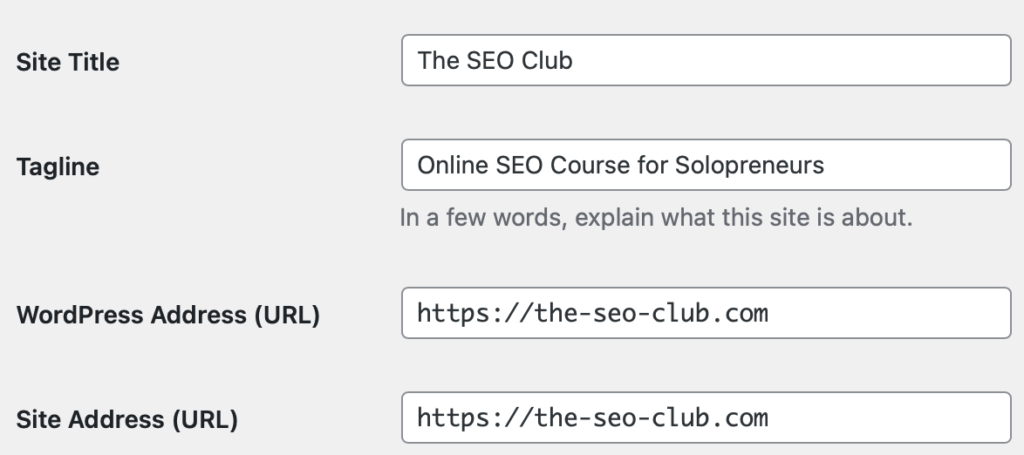
4. Updating the WordPress URL in settings
Provided you’ve purchased your new domain and it already points to your existing web hosting package, you can amend the WordPress Settings and enter your new domain.
Under WordPress Address (URL) and Site Address (URL), you enter the new domain name and press safe.
At this stage, you will be logged out and your site might show as not secure.
You can then log in again with the same username and password – using the new URL.
5. Adding an SSL Certificate so that your new domain name is secure
If you’d be changing page URLS on your website, you’d need to add 301 redirects from your old domain to your new domain. This is done in your web hosting control panel. Applying a new SSL can take up to one hour.
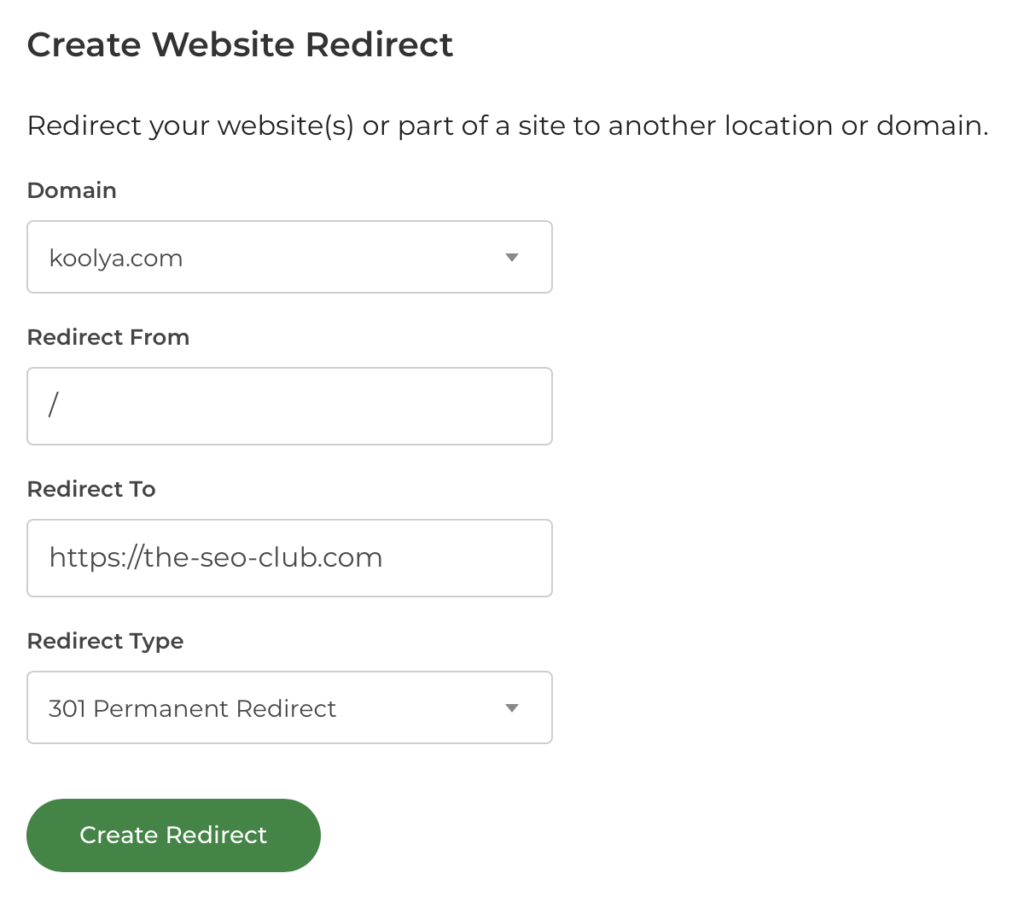
6. Redirecting the old domain t the new domain
This is done in your domain control panel. If you bought your domain at the same place as your web hosting, you can do this in the same control panel. If you want to know how to do this for your provider, simply search in Google for this: “how to redirect a domain to another domain [enter your web host name here]”.
Most sophisticated hosting companies have a support page for exactly this process.
You can search in Google for this:
how to redirect a domain to another domain [put your hosting provider here]
7. Updating the URLs on your website
No doubt you will have pages and blog posts on your website that link to other pages within your website. All of these internal links need to be updated and point to the new domain name. For example olddomain.com/about needs to point to newdomain.com/about.
It might seem a lot of work to do this, but thankfully there’s a plugin that does this really quickly. It’s called Update URLs and is free to use.
8. Update your Google Analytics Data Stream
- Open your Google Analytics Account for your old website.
- Bottom left, click on Admin
- in the middle column under “Property“, click on Data Streams and update your URL
- Under Property Settings – update the Property Name
9. Tell the Google Search Console you have moved your website
Thankfully, there is an easy way in the Google Search Console to “tell” Google that your domain name has changed.
Here’s how.
10. Update your terms and conditions
Ensure you use the correct “business name” on all of your pages.
11. Check your brand mentions
Go through all the pages and posts and replace your old brand name with your new name.
Changing your domain name without losing SEO rankings (2026 Update)
Changing your domain name is one of the biggest SEO changes you can make. Search engines treat each URL as an identifier, so a domain change can cause temporary ranking drops if it is not handled carefully. The good news is that a well-planned move can preserve most of your visibility and traffic over time.
Use page-to-page 301 redirects
The most important step is setting up permanent (301) redirects from every old URL to the most relevant matching URL on the new domain. Avoid sending everything to the homepage. Redirect each page to its direct equivalent so search engines and users land in the right place and link value can transfer properly.
Keep the old domain live
Do not cancel your old domain straight after the move. Keep it live so redirects continue to work. Many businesses keep the old domain for at least 6 to 12 months, and longer if possible, especially if the old domain has valuable backlinks.
Update internal links, canonicals, and sitemap
Once the new domain is live, update your internal links so they point directly to the new URLs instead of relying on redirects. Make sure your canonical tags reference the new domain, then generate a fresh XML sitemap and submit it for crawling.
Set up Google Search Console properly
In 2026, the focus is on verifying both domains and giving Google clear signals through clean technical setup and updated sitemaps. Add the old and new domains in Google Search Console, submit your new sitemap, and use URL Inspection to check key pages are being discovered and indexed.
Check tracking and analytics
A domain change can break tracking if it is not updated. Make sure your GA4 setup, Google Tag Manager, pixels, conversion tracking, and any third-party scripts are configured for the new domain. Check your main conversions after launch to confirm everything is still recording properly.
Make sure HTTPS is set up correctly
Your new domain should load securely on HTTPS with a valid SSL certificate. Redirect all HTTP versions to HTTPS and confirm there are no mixed content issues. A secure, consistent setup avoids browser warnings and supports trust signals for both users and search engines.
Monitor and expect a settling period
Even with a perfect migration, some ranking movement is normal while search engines process the changes. Monitor your performance in Search Console, watch for crawl errors, keep an eye on indexing, and fix any redirect chains, broken links, or missing pages quickly.
Update important backlinks where possible
Redirects handle most backlink value, but it is still worth updating your most important backlinks when you can. Start with key directories, partner websites, and any high-authority links you control so they point directly to the new domain.